What is an Unsecured Network and the Risks of Public WIFI
As a Managed IT Service Provider, we understand how importance it is to stay ahead of cybersecurity challenges. Unsecured networks are a common, yet often very underestimated, threat to personal and professional data security. Our mission is to empower individuals and businesses with the knowledge to navigate these risks confidently.
In this article, we’ll explain what unsecured networks are, the dangers they pose, and actionable steps you can take to protect yourself and your data. Your safety online is our priority, and we’re here to help you stay informed and secure.
What Is an Unsecured Network?
An unsecured network is a Wi-Fi connection that doesn’t require a password or uses weak security protocols, such as outdated encryption methods like WEP or no encryption at all. These networks are common in public places like cafes, malls, airports, and hotels. Because they lack encryption, anyone—including hackers—can connect, making your data fair game.
Let’s say you’re sipping a latte at your favorite coffee shop. You connect to the free Wi-Fi to check emails or shop online. What you don’t realize is that the person at the next table could be intercepting your data with ease.
How can this be possible? Well, you just connected to an unsecured network.
On an unsecured network, logging into your bank account or entering credit card details is like handing over your personal information on a silver platter.
Wi-Fi Security Standards Explained (2026 Update)
Not all wireless security is equal. Here’s how modern encryption standards compare:
| Security Type | Encryption Level | Safe to Use in 2026? | Risk Level |
|---|---|---|---|
| Open Network | None | ❌ No | Extremely High |
| WEP | Broken (cracked in minutes) | ❌ No | Extremely High |
| WPA | Outdated | ❌ No | High |
| WPA2 | Strong (with strong password) | ⚠️ Acceptable | Moderate |
| WPA3 | Modern encryption with forward secrecy | ✅ Yes | Low |
How Can You Recognize an Unsecured Wireless Network?
To identify an unsecured network:
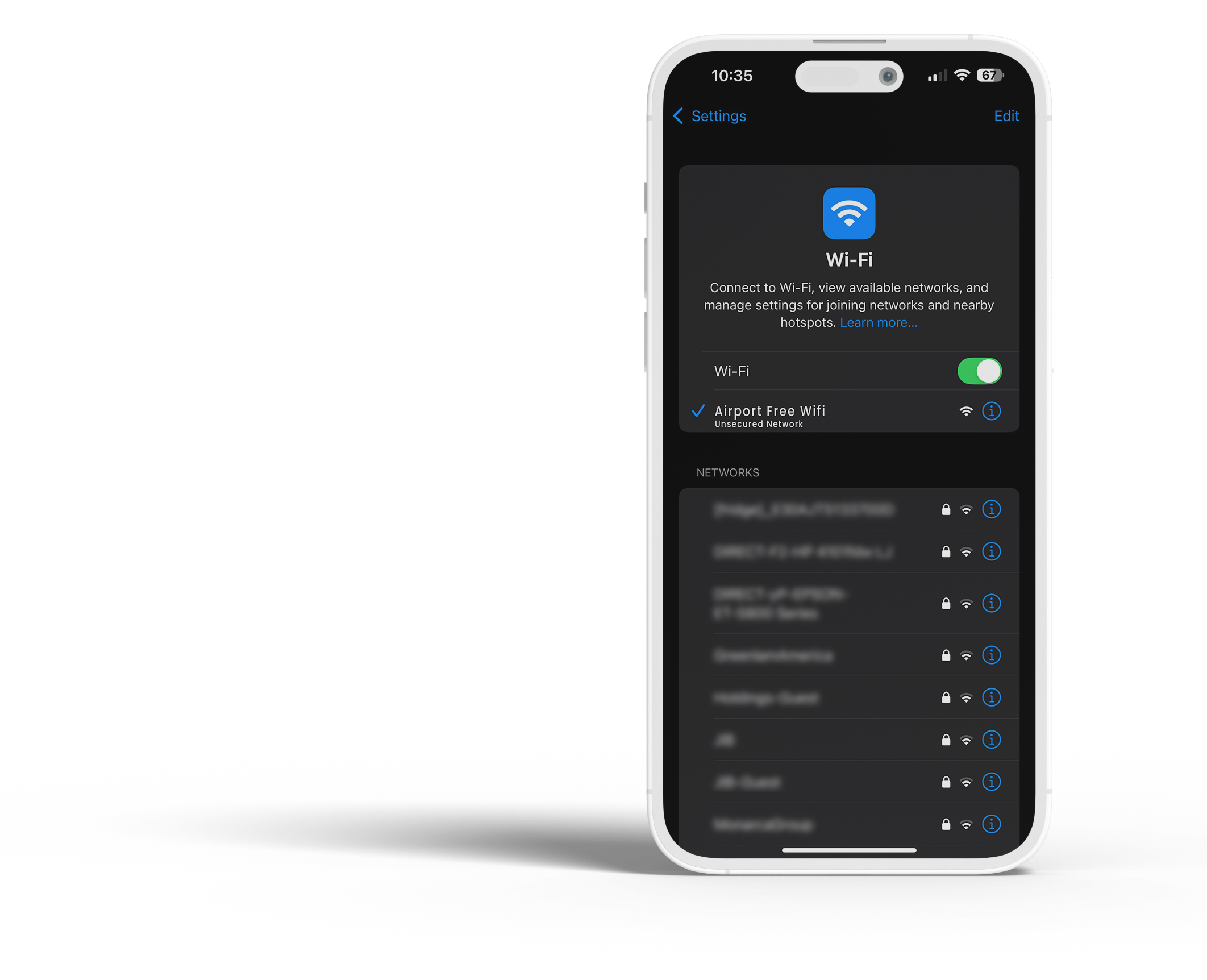
- Look for the absence of a padlock icon next to the network name in your device’s Wi-Fi settings.
- If a network doesn’t prompt you for a password, it’s unsecured.
- Networks labeled as “Open” are giveaways—they’re open for everyone, including hackers.
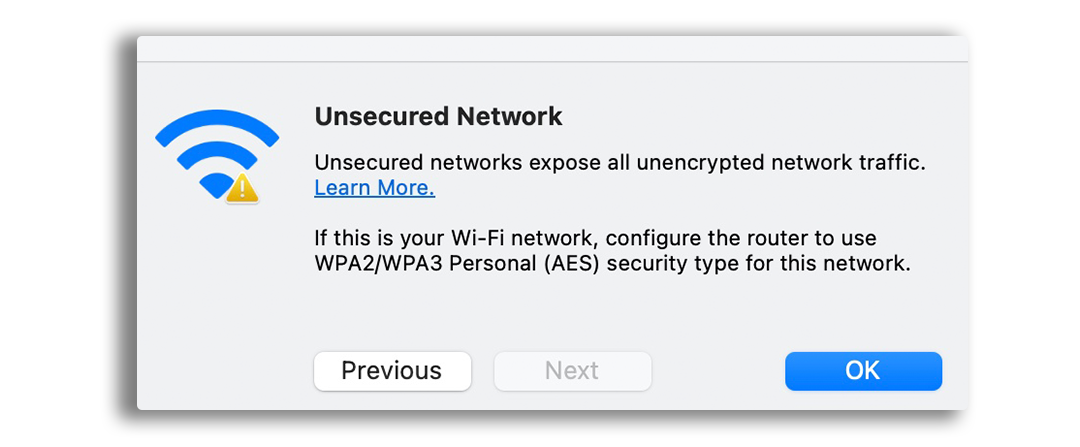
Why Does My Wi-Fi Say ‘Unsecured Network’?
If your Wi-Fi says it’s unsecured, it means the network doesn’t use encryption protocols like WPA2 or WPA3. This could happen if:
- The router is set up without security configurations.
- You’re connected to an open public network.
What Are the Risks of Using an Unsecured Network?
Unsecured networks aren’t just risky—they can be downright dangerous. Here’s why:
Data Interception
Hackers can intercept unencrypted data transmitted over the network. This includes login credentials, credit card numbers, and personal emails. According to a 2023 cybersecurity report, over 60% of Wi-Fi hacking incidents occur on public networks.
Malware Attacks
- Spyware: Malicious software secretly gathers data such as passwords or browsing activity and sends it back to the hacker.
- Ransomware: Locks your files and demands payment for their release, with no guarantee your data will be restored.
Identity Theft
Hackers with access to sensitive information can impersonate you, steal your money, or ruin your credit score.
Rogue Hotspots
Cybercriminals often set up fake Wi-Fi networks with names like “Free Airport Wi-Fi” to lure users into connecting. Once connected, they can monitor your activity or inject malicious software into your device.
Be cautious if you notice:
-
Duplicate network names (e.g., “Airport_WiFi” and “Airport_WiFi_Free”)
-
Misspelled business names
-
A connection that doesn’t require a login page when one normally exists
-
Frequent disconnects or forced reconnections
-
Browser security certificate warnings
Man-in-the-Middle (MITM) Attacks
One of the most common public Wi-Fi threats is a Man-in-the-Middle attack. This occurs when a hacker secretly positions themselves between your device and the internet connection.
Instead of your data going directly to the website you’re visiting, it passes through the attacker first. This allows them to:
-
Capture login credentials
-
Read emails
-
Steal financial information
-
Inject malicious code into websites
How to Fix an Unsecured Network
If you’re dealing with an unsecured network at home:
-
Enable Encryption
Access your router’s settings and activate WPA2 or WPA3 security.
-
Set a Strong Password
Use a password with a mix of letters, numbers, and symbols.
-
Update Your Router’s Firmware
Keeping your router updated ensures it has the latest security patches.
-
Disable SSID Broadcasting
Hiding your network’s name reduces its visibility to outsiders.
Staying Safe on Public Wi-Fi
When you must use public Wi-Fi, follow these tips to minimize risk:
-
Avoid Sensitive Transactions
Don’t log into bank accounts, shop online, or access sensitive work files. Even networks that seem secure might not be.
-
Use a Virtual Private Network (VPN)
A VPN encrypts your data, protecting it from prying eyes on unsecured networks.
- So you’re traveling for work and your hotel Wi-Fi is free but unsecured. You need to access important work documents. Instead of risking it, you turn on your VPN, ensuring all data transfers are encrypted. This small step saves you from potential identity theft or a data breach.
-
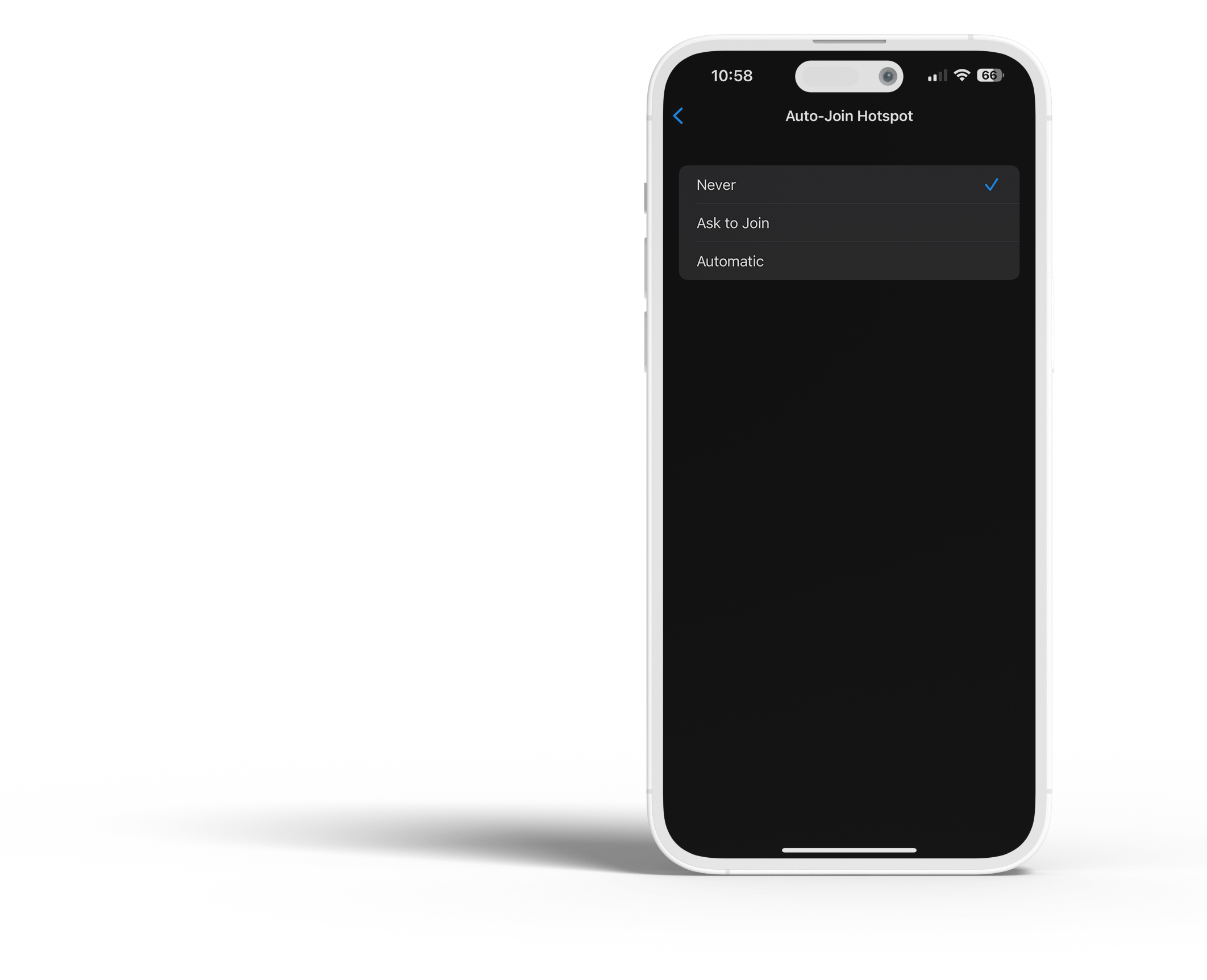
Turn Off Automatic Connectivity
Many devices automatically connect to available networks. Disable this feature to avoid accidentally joining a risky connection.
-
Monitor Bluetooth Connections
Hackers can exploit open Bluetooth connections. Keep Bluetooth off when not in use.
Stay Safe from Unsecured Networks with an IT Provider
Unsecured networks offer convenience but come with serious risks. By understanding these dangers and taking proactive steps—like using a VPN, enabling router encryption, or avoiding sensitive activities—you can stay safe online. Whether you’re at home or out and about, treating every network with caution will protect your data and give you peace of mind.
So next time you connect to Wi-Fi, ask yourself: “Is it worth the risk?” When it comes to unsecured networks, staying smart is staying safe.
Unsecured Network FAQ
| Question | Answer |
|---|---|
| What does “unsecured network” mean? | An unsecured network is Wi-Fi that doesn’t properly protect your connection—typically because it’s open (no password), uses weak/outdated security (like WEP/WPA), or is misconfigured. This can make it easier for attackers on the same network to intercept traffic, steal credentials, or trick you into connecting to a fake hotspot. |
| What is an unsecured network (simple definition)? | An unsecured network is Wi-Fi that does not use strong encryption (ideally WPA3, or WPA2-AES at minimum). Without strong encryption, your activity is easier to monitor or tamper with—especially on public Wi-Fi. |
| How can you recognize an unsecured wireless network? | Common signs include:
If you’re in a public location, confirm the official network name with staff before connecting. |
| Why does my Wi-Fi say “unsecured network”? | This usually means the network is open or isn’t using modern encryption such as WPA2/WPA3. It can also happen if the router is outdated, firmware is missing updates, or the Wi-Fi security mode is set to an older option like WEP/WPA. |
| How do I fix an unsecured network? | If it’s your home/office Wi-Fi, the fix is typically:
|
| How do I secure an unsecured Wi-Fi network? | Use this secure baseline for 2026:
|
| How do I connect to an unsecured network on iPhone (and stay safer)? | Go to Settings → Wi-Fi and select the network. If you must use it:
|
| How do I fix an unsecured network on Mac? | A Mac warning usually means the network’s security is weak. On your own Wi-Fi, update the router to WPA3 or WPA2-AES and apply firmware updates. On public Wi-Fi, use a VPN and avoid sensitive logins. You can also “forget” risky networks in your Wi-Fi settings to prevent auto-reconnect. |
| How do I change an unsecured wireless network to secured? | Log into your router settings (often 192.168.1.1 or 192.168.0.1), then:
If your router only supports WEP/WPA, replacing it is recommended. |